# Install Sourcegraph on DigitalOcean
---
This guide will take you through how to deploy a Sourcegraph instance to a single DigitalOcean Droplet with [Docker Compose](https://docs.docker.com/compose/).
## Configure
[Create a new DigitalOcean Droplet](https://cloud.digitalocean.com/droplets/new) first, then configure the droplet following the instructions below for each section:
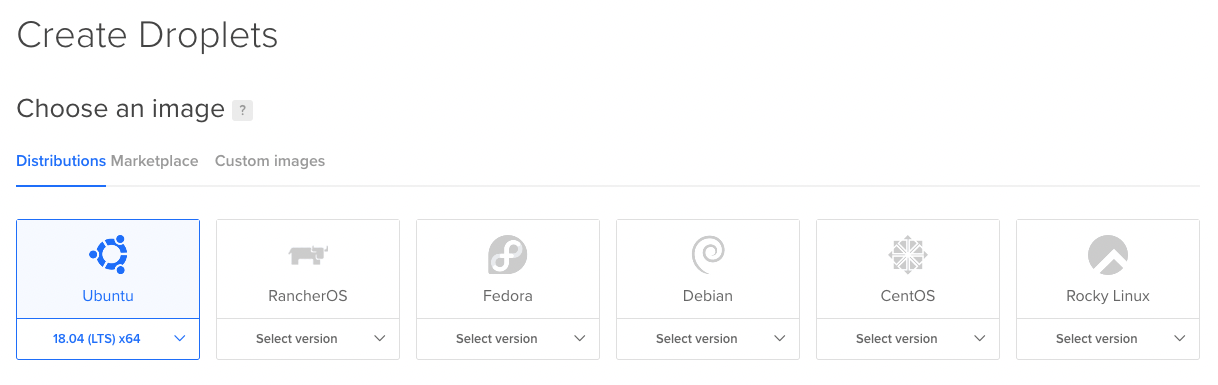
#### Choose an image
1. Select **Ubuntu 18.04** under _Distributions_
#### Choose a plan
1. Select an appropriate droplet size using our [resource estimator](/self-hosted/deploy/resource-estimator) as reference
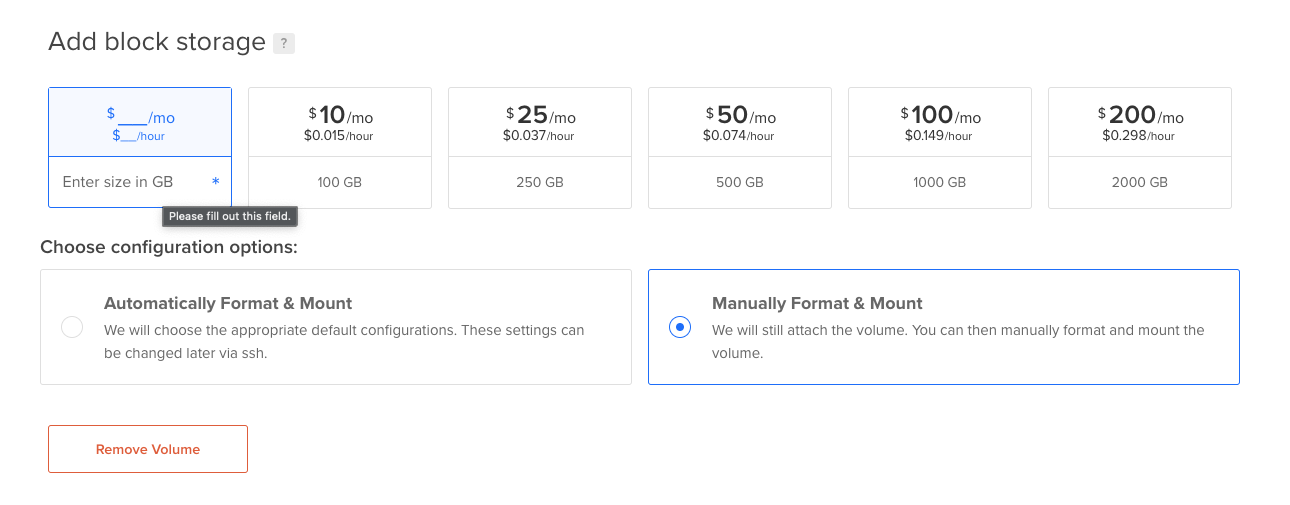
#### Add block storage
1. Click on **Add Volume** to add a new block storage
2. Select size for the block storage --Minimum 250GB
- Sourcegraph needs at least as much space as all your repositories combined take up
- Allocating as much disk space as you can upfront minimize the need for switching to a droplet with a larger root disk later on
3. Under **Choose configuration options**, select "Manually Format and Mount"
#### Authentication
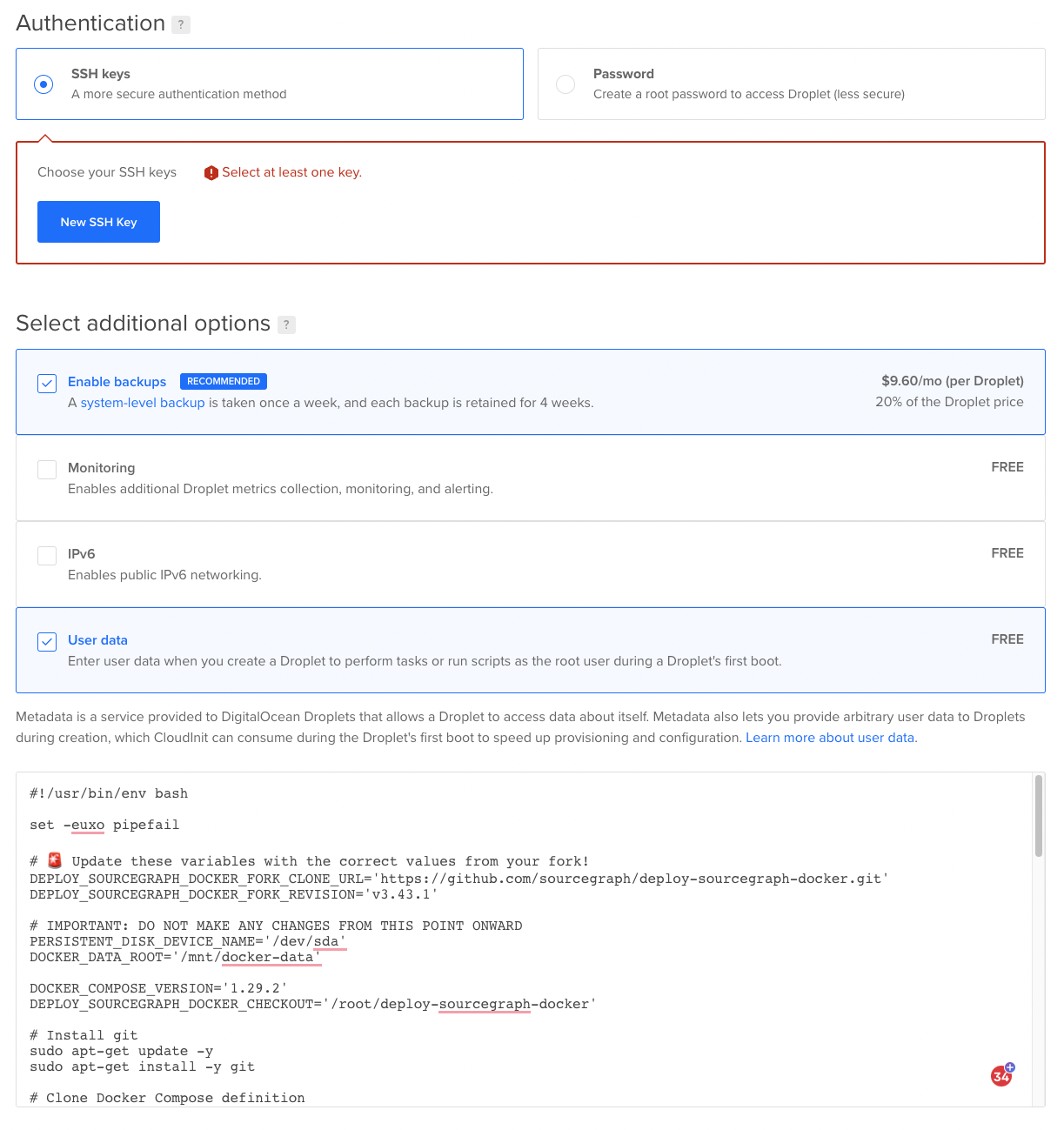
1. RECOMMENDED Select **SSH keys** to create
a **New SSH Key** for convenient access to the droplet
#### Authentication > Enable backups
1. RECOMMENDED Select **Enable backups** checkbox
under *Select additional options* to enable weekly backups of all your data
#### Authentication > User data
1. Copy and paste the _Startup script_ below into the **User data** text box:
##### Startup script
```bash
#!/usr/bin/env bash
set -euxo pipefail
###############################################################################
# ACTION REQUIRED: REPLACE THE URL AND REVISION WITH YOUR DEPLOYMENT REPO INFO
###############################################################################
# Please read the notes below the script if you are cloning a private repository
DEPLOY_SOURCEGRAPH_DOCKER_FORK_CLONE_URL='https://github.com/sourcegraph/deploy-sourcegraph-docker.git'
DEPLOY_SOURCEGRAPH_DOCKER_FORK_REVISION={CURRENT_VERSION}
##################### NO CHANGES REQUIRED BELOW THIS LINE #####################
DEPLOY_SOURCEGRAPH_DOCKER_CHECKOUT='/root/deploy-sourcegraph-docker'
DOCKER_DATA_ROOT='/mnt/docker-data'
DOCKER_COMPOSE_VERSION='1.29.2'
DOCKER_DAEMON_CONFIG_FILE='/etc/docker/daemon.json'
PERSISTENT_DISK_DEVICE_NAME='/dev/sda'
# Install git
sudo apt-get update -y
sudo apt-get install -y git
# Clone the deployment repository
git clone "${DEPLOY_SOURCEGRAPH_DOCKER_FORK_CLONE_URL}" "${DEPLOY_SOURCEGRAPH_DOCKER_CHECKOUT}"
cd "${DEPLOY_SOURCEGRAPH_DOCKER_CHECKOUT}"
git checkout "${DEPLOY_SOURCEGRAPH_DOCKER_FORK_REVISION}"
# Format (if unformatted) and then mount the attached volume
device_fs=$(sudo lsblk "${PERSISTENT_DISK_DEVICE_NAME}" --noheadings --output fsType)
if [ "${device_fs}" == "" ]
then
sudo mkfs.ext4 -m 0 -E lazy_itable_init=0,lazy_journal_init=0,discard "${PERSISTENT_DISK_DEVICE_NAME}"
fi
sudo mkdir -p "${DOCKER_DATA_ROOT}"
sudo mount -o discard,defaults "${PERSISTENT_DISK_DEVICE_NAME}" "${DOCKER_DATA_ROOT}"
# Mount file system by UUID on reboot
DISK_UUID=$(sudo blkid -s UUID -o value "${PERSISTENT_DISK_DEVICE_NAME}")
sudo echo "UUID=${DISK_UUID} ${DOCKER_DATA_ROOT} ext4 discard,defaults,nofail 0 2" >> '/etc/fstab'
sudo umount "${DOCKER_DATA_ROOT}"
sudo mount -a
# Install, configure, and enable Docker
curl -fsSL https://download.docker.com/linux/ubuntu/gpg | sudo apt-key add -
sudo add-apt-repository "deb [arch=amd64] https://download.docker.com/linux/ubuntu $(lsb_release -cs) stable"
sudo apt-get update -y
apt-cache policy docker-ce
apt-get install -y docker-ce docker-ce-cli containerd.io
## Enable Docker at startup
sudo systemctl enable --now docker
# Install jq for scripting
sudo apt-get update -y
sudo apt-get install -y jq
## Initialize the config file with empty json if it doesn't exist
if [ ! -f "${DOCKER_DAEMON_CONFIG_FILE}" ]
then
mkdir -p $(dirname "${DOCKER_DAEMON_CONFIG_FILE}")
echo '{}' > "${DOCKER_DAEMON_CONFIG_FILE}"
fi
## Point Docker storage to mounted volume
tmp_config=$(mktemp)
trap "rm -f ${tmp_config}" EXIT
sudo cat "${DOCKER_DAEMON_CONFIG_FILE}" | sudo jq --arg DATA_ROOT "${DOCKER_DATA_ROOT}" '.["data-root"]=$DATA_ROOT' > "${tmp_config}"
sudo cat "${tmp_config}" > "${DOCKER_DAEMON_CONFIG_FILE}"
## Restart Docker daemon to pick up new changes
sudo systemctl restart --now docker
# Install Docker Compose
curl -L "https://github.com/docker/compose/releases/download/${DOCKER_COMPOSE_VERSION}/docker-compose-$(uname -s)-$(uname -m)" -o /usr/local/bin/docker-compose
chmod +x /usr/local/bin/docker-compose
curl -L "https://raw.githubusercontent.com/docker/compose/${DOCKER_COMPOSE_VERSION}/contrib/completion/bash/docker-compose" -o /etc/bash_completion.d/docker-compose
# Start Sourcegraph with Docker Compose
cd "${DEPLOY_SOURCEGRAPH_DOCKER_CHECKOUT}"/docker-compose
docker-compose up -d --remove-orphans
```
> NOTE: If you're deploying a production instance, we recommend [forking the deployment configuration repository](/self-hosted/deploy/docker-compose/#step-1-fork-the-deployment-repository) to track any customizations you make to the deployment config. If you do so, you'll want to update the _startup script_ you pasted from above to refer to the clone URL and revision of your fork:
>
> - `DEPLOY_SOURCEGRAPH_DOCKER_FORK_CLONE_URL`: The Git clone URL of your deployment repository. If it is a private repository, please check with your code host on how to generate a URL for cloning private repository
> - `DEPLOY_SOURCEGRAPH_DOCKER_FORK_REVISION`: The revision (branch) in your fork containing the customizations, typically "release"
---
## Deploy
1. Click **Create Droplet** to create your droplet with Sourcegraph installed
- Please ensure the configurations align with the instructions above before creating the instance
2. Navigate to the droplet's IP address to complete initializing Sourcegraph
> NOTE: It may take a few minutes for the instance to finish initializing before Sourcegraph becomes accessible.
You can monitor the setup process by SSHing into the instance to run the following diagnostic commands:
```bash
# Follow the status of the startup script
tail -f /var/log/cloud-init-output.log
# Once installation is completed, check the health of the "sourcegraph-frontend" container
docker ps --filter="name=sourcegraph-frontend-0"
```
---
## Next
After the initial deployment has been completed, it is strongly recommended to set up the following:
- Restrict the accessibility of ports other than `80` and `443` via [Cloud
Firewalls](https://www.digitalocean.com/docs/networking/firewalls/quickstart/).
- Set up [TLS/SSL](/self-hosted/http-https-configuration#sourcegraph-via-docker-compose-caddy-2) in the Docker Compose deployment
> NOTE: If you have configured a DNS entry for the IP, please ensure to update `externalURL` in your Sourcegraph instance's Site Configuration to reflect that
---
## Upgrade
Please refer to the [Docker Compose upgrade docs](/self-hosted/deploy/docker-compose/upgrade) for detailed instructions on updating your Sourcegraph instance.
---
## Storage and Backups
Data is persisted within a [Docker volume](https://docs.docker.com/storage/volumes/) as defined in the [deployment repository](https://github.com/sourcegraph/deploy-sourcegraph-docker/blob/master/docker-compose/docker-compose.yaml). The startup script configures Docker using a [daemon configuration file](https://docs.docker.com/engine/reference/commandline/dockerd/#daemon-configuration-file) to store all the data on the attached data volume, which is mounted at `/mnt/docker-data`, where volumes are stored within `/mnt/docker-data/volumes`.
The most straightforward method to backup this data is to [snapshot the entire `/mnt/docker-data` block storage volume on an automatic scheduled basis](https://www.digitalocean.com/docs/images/snapshots/).
RECOMMENDED Using an external Postgres service
such as [AWS RDS for PostgreSQL](https://aws.amazon.com/rds/) takes care of backing
up all the user data for you. If the Sourcegraph instance ever dies or gets destroyed,
creating a fresh new instance connected to the old external Postgres service will
get Sourcegraph back to its previous state.
---
## Other resources
[HTTP and HTTPS/SSL configuration](/self-hosted/http-https-configuration#sourcegraph-via-docker-compose-caddy-2)
[Site Administration Quickstart](/admin/how-to/site-admin-quickstart)