Learn in detail about how to create, view, and filter your Batch Changes.
Batch Changes are created by writing a [batch spec](/batch-changes/batch-spec-yaml-reference) and executing that batch spec with the [Sourcegraph CLI](https://github.com/sourcegraph/src-cli) `src`. There are two ways of creating a batch change: 1. On your Sourcegraph instance, with [server-side execution](#on-your-sourcegraph-instance) 2. On your local machine, with the [Sourcegraph CLI](#using-the-sourcegraph-cli) ## On your Sourcegraph instance Here, you'll learn how to create and run a batch change via server-side execution. To get started, click the **Batch Changes** icon in the top navigation or navigate to `/batch-changes`. ### Create a batch change Click the **Create batch change** button on the Batch Changes page, or go to `/batch-changes/create`.  You will be redirected to a page showing you a list of curated templates. ### Choosing a template From the template selection page, you can either: - **Pick a template** from the list of curated templates that best matches your use case - **Click "Start from Scratch"** if you prefer to continue without a template 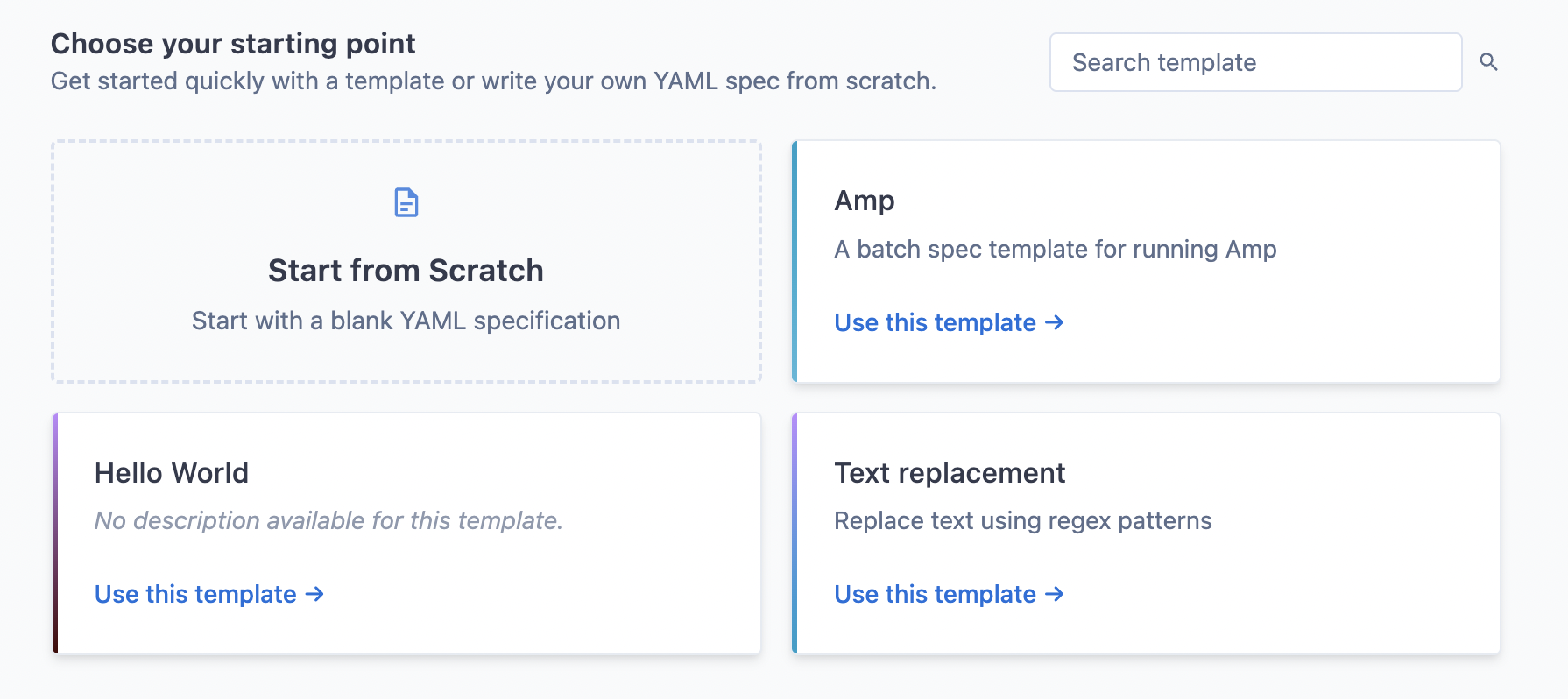 Your site admin can curate the list of available templates to match your organization's specific needs and use cases. ### Filling out template fields If you selected a template, you will need to fill out the form fields specific to that template. These fields will customize the batch spec to your specific requirements. 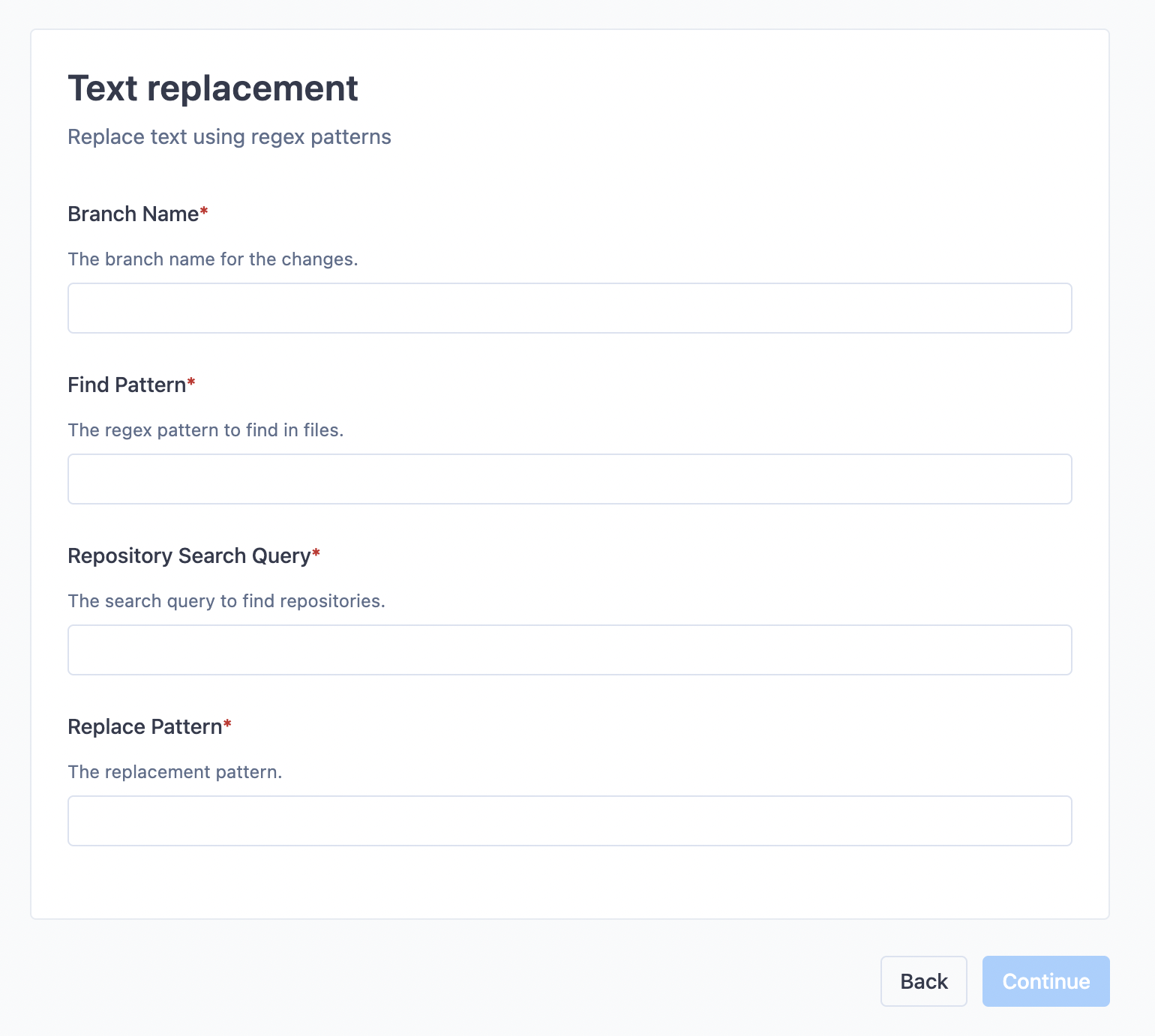 The form fields are validated by regular expressions. If the validation fails, look at the description of that field to see what kind of value is required. ### Choose a name for your batch change After you've filled out the template form fields, or after you've clicked "Start from Scratch", you will be prompted to choose a name for your namespace and optionally define a custom namespace to put your batch change in. 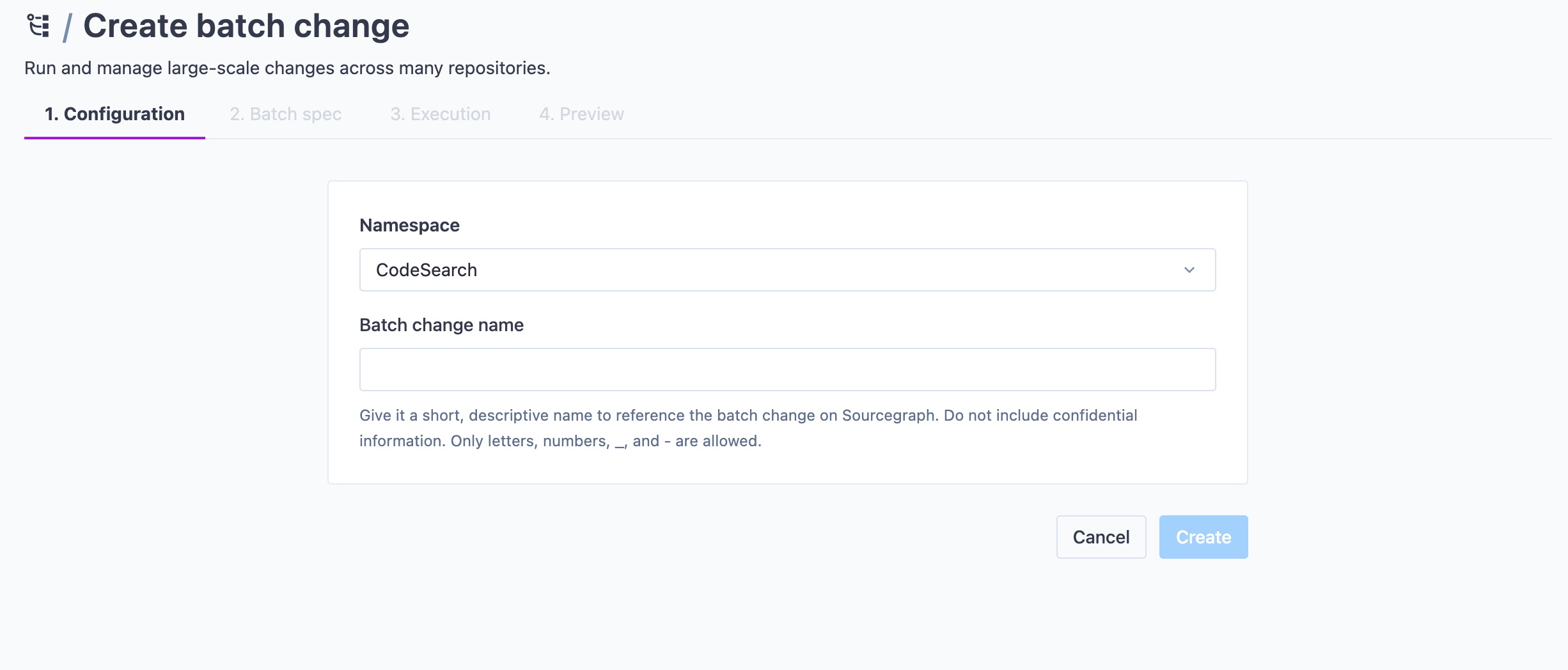 Once done, click **Create**. ### Previewing batch spec and workspaces You can now see the batch spec and run a preview of the affected repositories and workspaces from the right-hand side panel. After resolution, it will show all the workspaces in repositories that match the given `on` statements. You can search through them and determine if your query is satisfying before starting execution. You can also exclude single workspaces from this list. Batch Changes can also be used on [multiple projects within a monorepo](/batch-changes/creating-changesets-per-project-in-monorepos) by using the `workspaces` key in your batch spec. The library contains examples that you can apply right into your batch spec if you need inspiration. Your site admin can manage the library of examples. 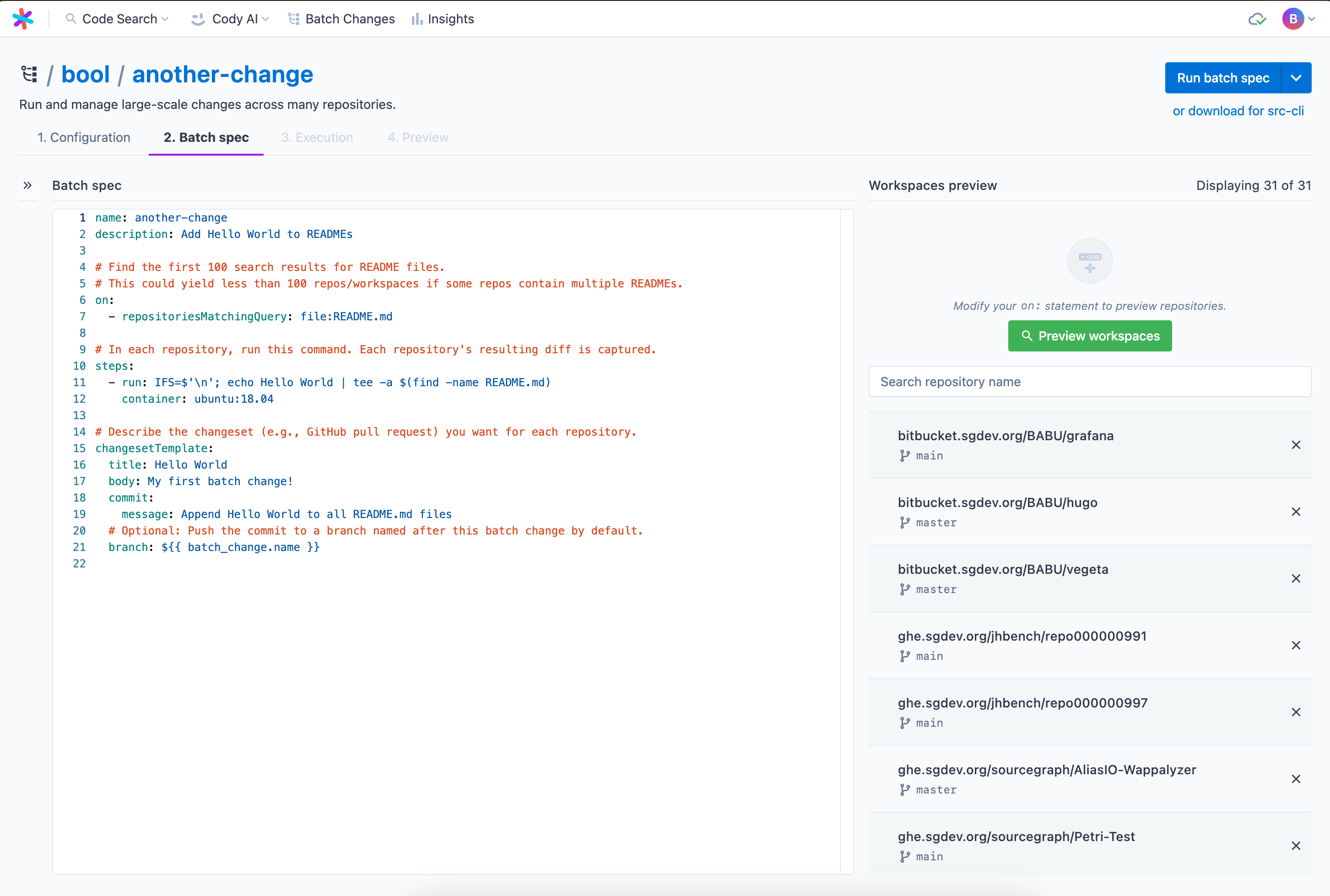 ### Executing your batch spec When the spec is ready to run, ensure the [preview](/batch-changes/create-a-batch-change#previewing-workspaces) is up to date and then click **Run batch spec**. This takes you to the execution screen. On this page, you see: - Run statistics at the top - All the workspaces, including status and diff stat, in the left panel - Details on a particular workspace on the right-hand side panel where you can see steps with: - Logs - Results - Command - Per-step diffs - Output variables - Execution timelines for debugging Once finished, you can proceed to the batch spec preview, as you know it from before. 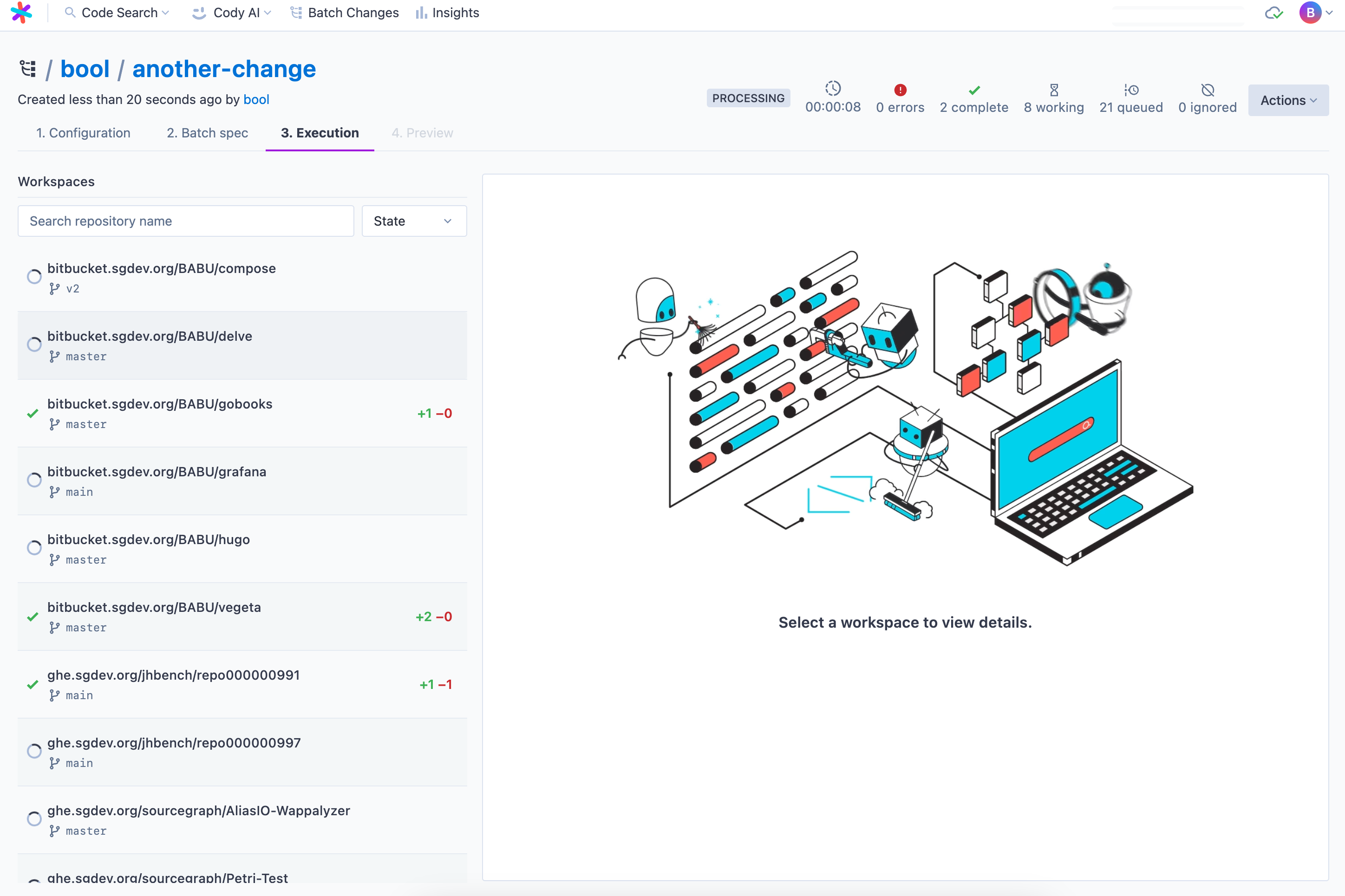 ### Previewing and applying the batch spec On this page, you can review the proposed changes. Once satisfied, click **Apply**. Congratulations, you ran your first batch change server-side 🎊 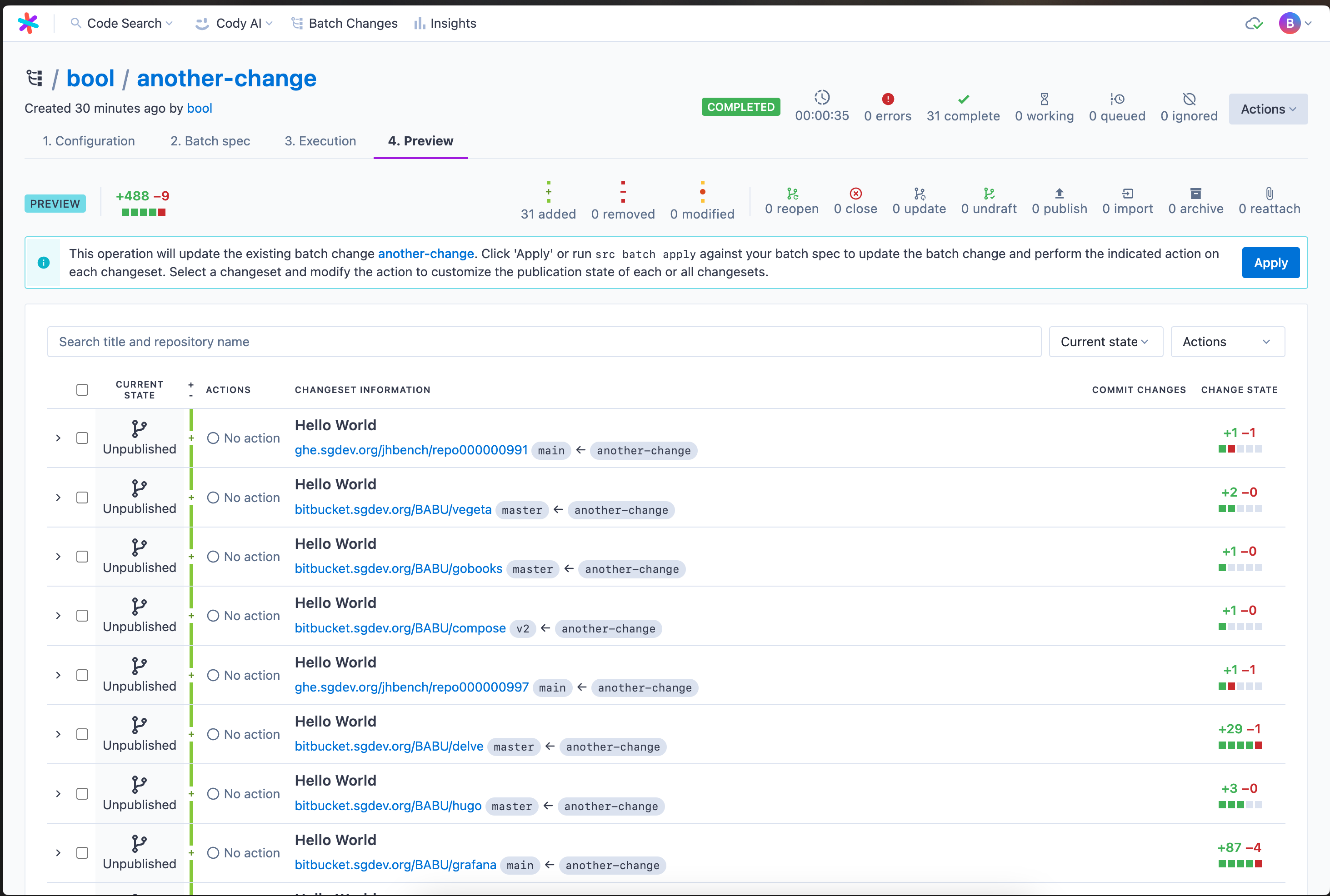 ## Using the Sourcegraph CLI This part of the guide will walk you through creating a batch change on your local machine with the Sourcegraph CLI. ### Requirements - Sourcegraph instance with repositories in it. See the [Quickstart](/batch-changes/quickstart) guide on how to set up a Sourcegraph instance - Installed and configured [Sourcegraph CLI](https://github.com/sourcegraph/src-cli). Read about the detailed process in the [quickstart guide](/batch-changes/quickstart#install-the-sourcegraph-cli) - Configure the credentials for the code host(s) on which you'll create changesets. Read more about [Configuring user credentials](/batch-changes/configuring-credentials) docs on how to add and manage credentials ### Writing a batch spec To create a batch change, you need a **batch spec** describing the change. Here is an example batch spec that describes a batch change to add **Hello World** to all `README` files: ```yaml version: 2 name: hello-world description: Add Hello World to READMEs # Find all repositories that contain a README file. on: - repositoriesMatchingQuery: file:README # In each repository, run this command. Each repository's resulting diff is captured. steps: - run: IFS=$'\n'; echo Hello World | tee -a $(find -name README) container: alpine:3 # Describe the changeset (e.g., GitHub pull request) you want for each repository. changesetTemplate: title: Hello World body: My first batch change! branch: hello-world # Push the commit to this branch. commit: message: Append Hello World to all README files published: false # Do not publish any changes to the code hosts yet ``` The commits created from your spec will use the `git config` values for `user.name` and `user.email` from your local environment or `batch-changes@sourcegraph.com` if no user is set. Alternatively, you can also [specify an `author`](/batch-changes/batch-spec-yaml-reference#changesettemplatecommitauthor) in this spec.